Setting up your TSI account
Access to Falkonry Time Series Intelligence is strictly by invitation only. If you have not received an invite via email, pause here and please contact your account administrator or Falkonry via support@falkonry.com.
Check your email inbox or spam folder for the invite and click on the link to access Falkonry TSI. You will be directed to the Sign Up page, where you can set your password and access Falkonry TSI.
1. Setting Password
On the first visit to Falkonry TSI you will be directed to the Sign Up page, enter a password of your choice to set the password for your
access.
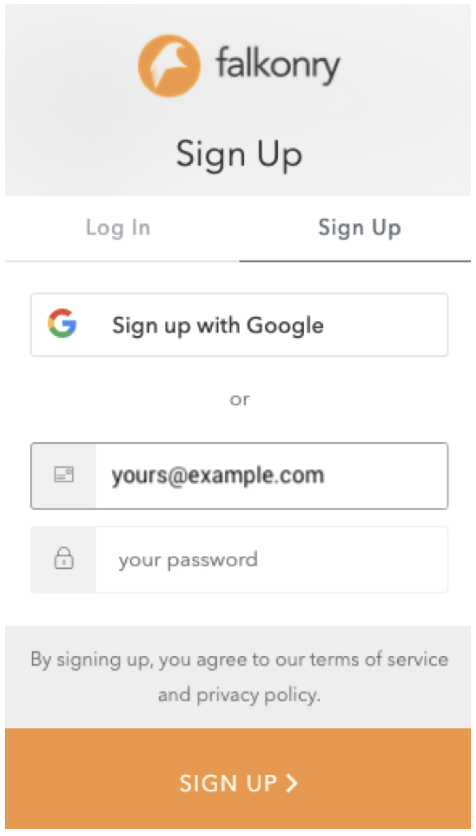
On subsequent visits, you will be directed to the log In page, where you must use your existing credentials to login.
Note
If you receive an error message \"User already exists\" it means you are an existing user and so you do not need to sign up, instead use the Log In tab
When should I use "sign up with Google"? If the email service provider of your email address is Google, then you can use "Sign up with Google".
2. Logging in to Falkonry TSI
Either using your Google account or login credentials, you can access Falkonry TSI. If you have multiple accounts, you will be directed to the last used account. To switch accounts, click on the account name in the top left corner and select the account you want to access.
3. Select your timezone
To set your timezone, click on timezone in the top right corner and select the timezone of your choice. This will ensure that all the timestamps in Falkonry TSI are displayed in your local timezone.
4. Select your preferred language
To set your preferred language, click on the language option in the top right corner and select the language of your choice. This will ensure that all the text in Falkonry TSI is displayed in your preferred language. Currently, Falkonry TSI supports English and Spanish languages. This will require purchasing the additional language pack. Please contact your account administrator or Falkonry via support@falkonry.com.